 Fuze
Editorial
Assemble clips on a timeline, save named edits and export to video or FCPXML.Monta clips en una línea de tiempo, guarda edits con nombre y exporta a vídeo o FCPXML.
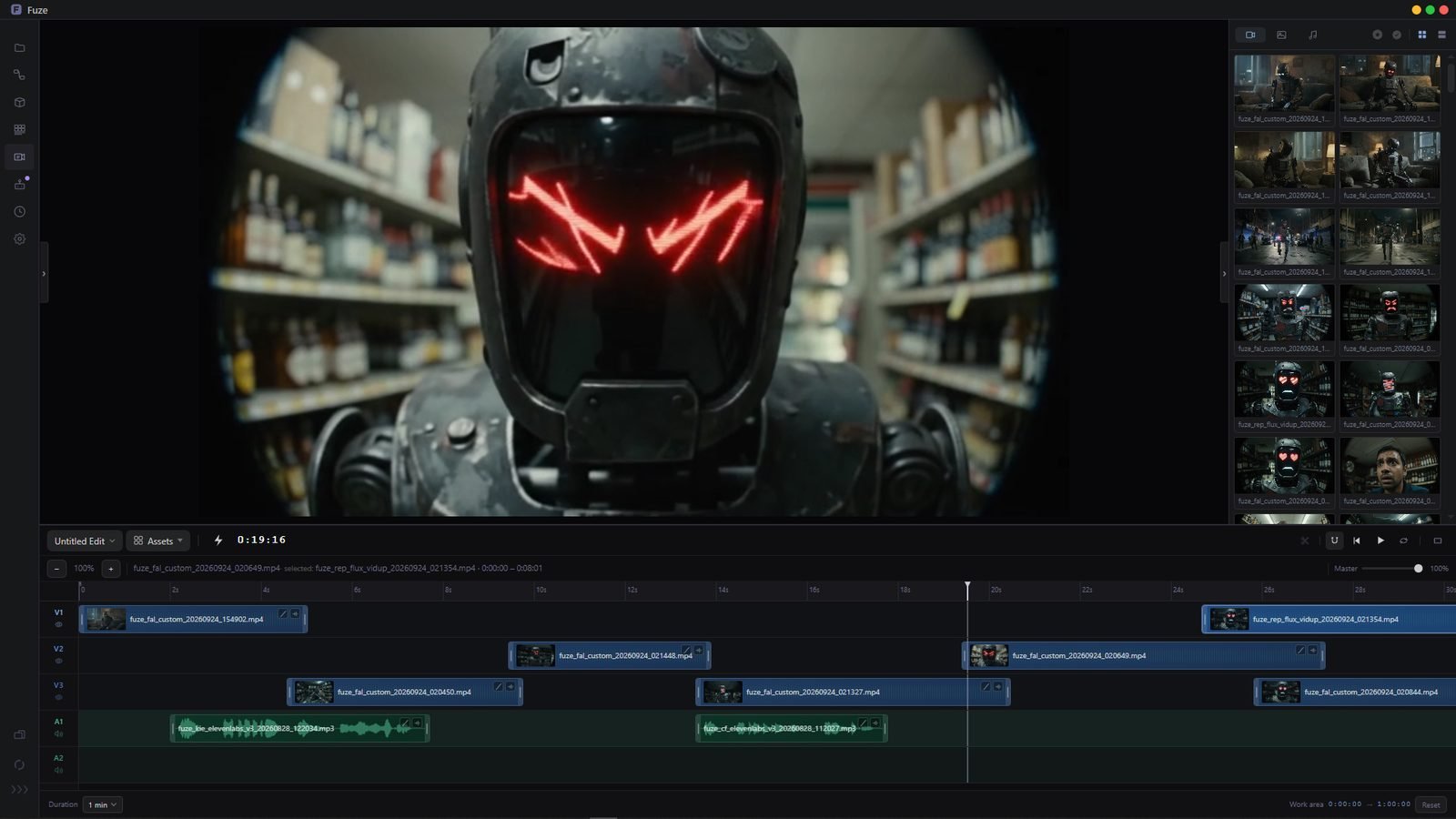
- Timeline. Three video tracks and audio tracks. Drag video, images and audio in from the gallery panel, then move, trim, split (
S) and snap clips. Undo and redo are always there.Línea de tiempo. Tres pistas de vídeo y pistas de audio. Arrastra vídeo, imágenes y audio desde el panel de galería, y mueve, recorta, divide (S) y ajusta clips con imán. Deshacer y rehacer siempre disponibles. - Preview. Set a work area with
IandO, loop it, and check framing with aspect guides (16:9, 4:3, 1:1, 2.39:1, 9:16). A preview cache keeps playback smooth and a draft is autosaved.Previsualización. Define una zona de trabajo conIyO, ponla en bucle y revisa el encuadre con guías de formato (16:9, 4:3, 1:1, 2.39:1, 9:16). Una caché de previsualización mantiene la reproducción fluida y se guarda un borrador automáticamente. - Sound. Master and per-clip volume, plus fades.Sonido. Volumen general y por clip, más fundidos.
- Export. From the File menu: a movie in MP4 or MOV (choose frame rate, resolution, codec and quality), or an FCPXML to continue in your NLE (not in Free). Publishing the edit as an asset is a Studio feature.Exporta. Desde el menú File: una película en MP4 o MOV (elige fps, resolución, códec y calidad), o un FCPXML para seguir en tu editor (no disponible en Free). Publicar el edit como asset es una función de Studio.
- Versions of a clip. Mark the folder that holds your shots in the Manager and each clip shows which version of its shot it uses, and you can switch version on the timeline. See below.Versiones de un clip. Marca en el Manager la carpeta que contiene tus shots y cada clip muestra qué versión de su shot usa, y puedes cambiarla en la línea de tiempo. Mira más abajo.
- Where it is saved. Named edits are saved inside your project, in
_editorialand in a folder with your name, so they travel with the project and do not mix with other artists. You can open someone else's edit, but Save writes your own copy. The autosaved draft and the exports (MP4 and FCPXML) are not part of this and stay where they were. A Viewer can open edits but not save them.Dónde se guarda. Los edits con nombre se guardan dentro de tu proyecto, en_editorialy en una carpeta con tu nombre, así que viajan con el proyecto y no se mezclan con los de otros artistas. Puedes abrir el edit de otra persona, pero Save escribe tu propia copia. El borrador automático y las exportaciones (MP4 y FCPXML) no entran en esto y siguen donde estaban. Un Viewer puede abrir edits pero no guardarlos.
Shots and versions of a clipShots y versiones de un clip
When you generate a shot again and again, you end up with many videos of the same shot. Editorial can treat them as versions of the shot, so you change the version of a clip on the timeline without dragging anything again. First tell Fuze where your shots are, then put the videos on the timeline, and pick versions.Cuando generas un plano una y otra vez, acabas con muchos vídeos del mismo plano. Editorial puede tratarlos como versiones del shot, y así cambias la versión de un clip en la línea de tiempo sin volver a arrastrar nada. Primero dile a Fuze dónde están tus shots, luego pon los vídeos en la línea de tiempo y elige versiones.
1. Mark your shots folder1. Marca tu carpeta de shots
In the Manager, right-click the folder that holds your shots (for example 04_Shots) and choose Set as shots folder. Every folder inside it becomes a shot, and the videos of each one are its versions. The folder shows a small icon. To undo it, right-click it again and choose Clear shots folder.En el Manager, haz clic derecho en la carpeta que contiene tus shots (por ejemplo 04_Shots) y elige Set as shots folder. Cada carpeta que hay dentro pasa a ser un shot, y los vídeos de cada una son sus versiones. La carpeta muestra un pequeño icono. Para deshacerlo, haz clic derecho otra vez y elige Clear shots folder.
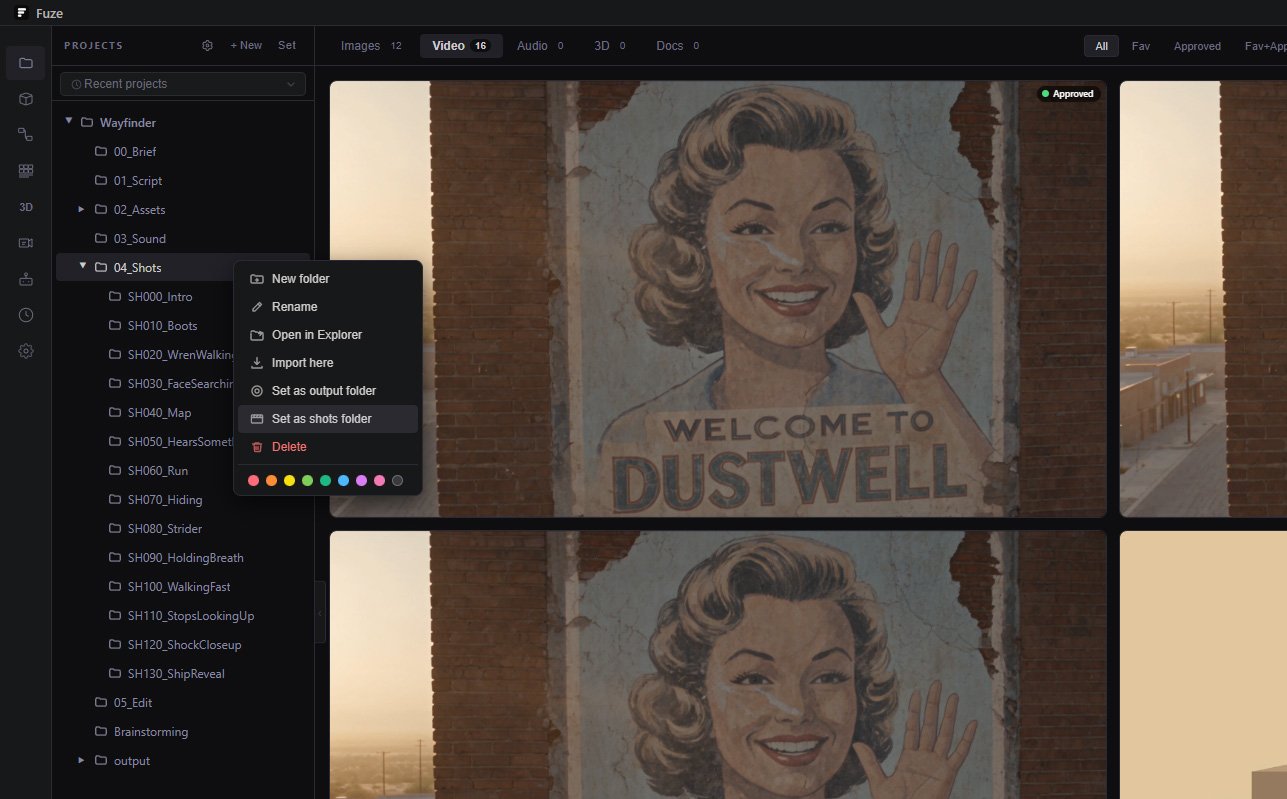
- Not a shot. If one of those folders is not a shot, right-click it and choose Not a shot.Not a shot. Si una de esas carpetas no es un shot, haz clic derecho en ella y elige Not a shot.
- Any name works. Folder names do not matter, in any language: only the folder you mark counts. Until you mark one, clips show no versions.Vale cualquier nombre. Los nombres de las carpetas no importan, en cualquier idioma: solo cuenta la carpeta que marques. Hasta que marques una, los clips no muestran versiones.
2. Send videos to Editorial2. Envía vídeos a Editorial
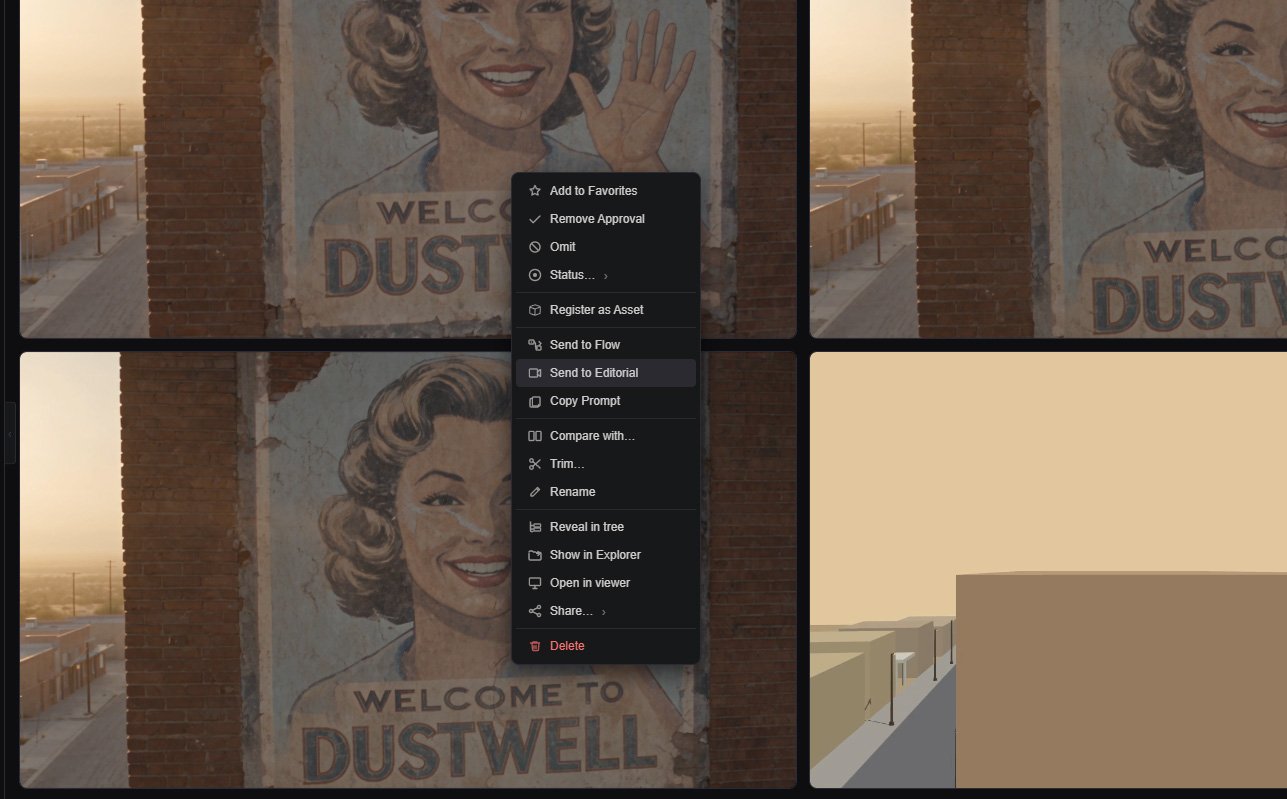
Select one or several videos in the Manager, right-click and choose Send to Editorial. Editorial opens and adds them at the end of track V1, one after another, in the order of your selection. Videos with sound bring their audio along. You can still drag videos from the gallery panel as before.Selecciona uno o varios vídeos en el Manager, haz clic derecho y elige Send to Editorial. Se abre Editorial y los añade al final de la pista V1, uno tras otro, en el orden de tu selección. Los vídeos con sonido traen su audio. Puedes seguir arrastrando vídeos desde el panel de galería como antes.
3. Choose the version of a clip3. Elige la versión de un clip
A video clip that belongs to a shot shows a badge with its version (v003). Click the badge to see all the versions of that shot, newest first, with their date and the states they have in the Manager. Click one to switch the clip to it: the clip stays where it is and keeps its length. Ctrl+Z undoes it.Un clip de vídeo que pertenece a un shot muestra una etiqueta con su versión (v003). Haz clic en la etiqueta para ver todas las versiones de ese shot, de la más nueva a la más antigua, con su fecha y los estados que tienen en el Manager. Haz clic en una para cambiar el clip a ella: el clip se queda donde está y mantiene su duración. Ctrl+Z lo deshace.
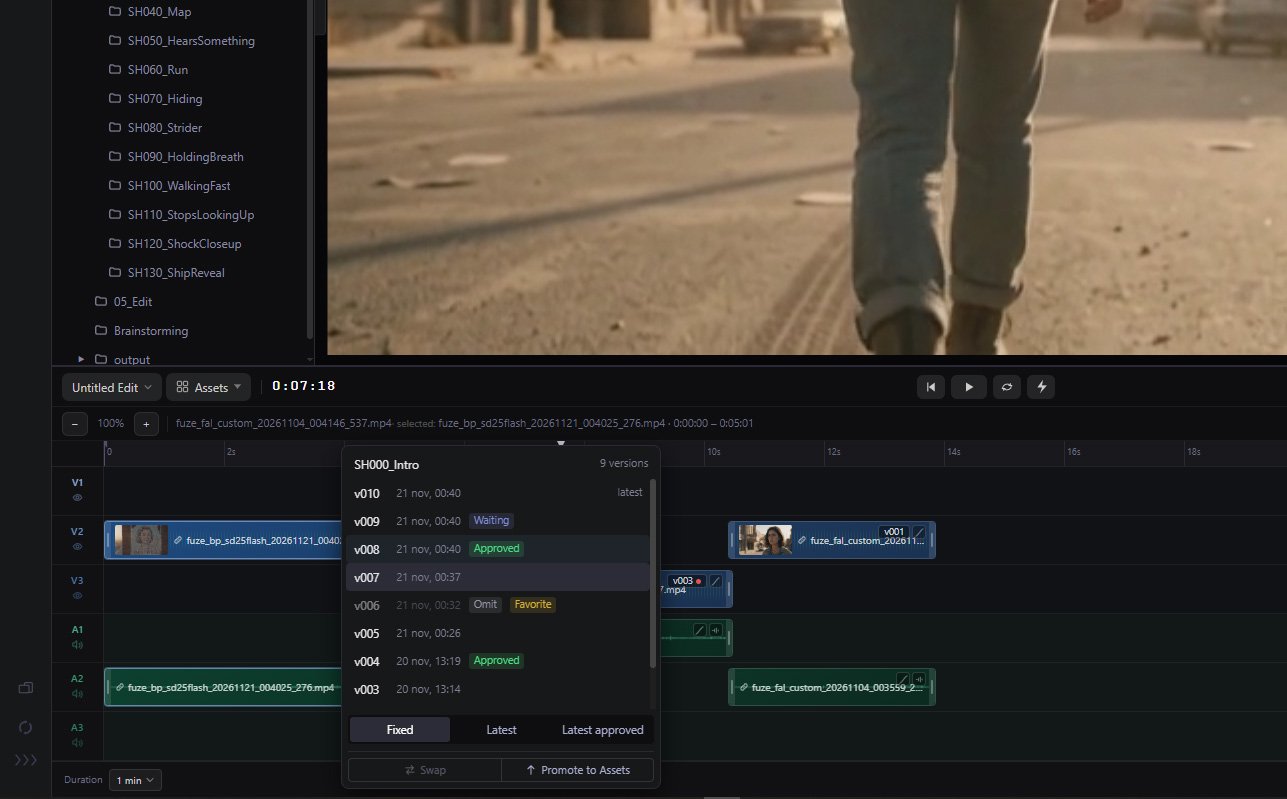
- The dot on the badge shows the state of the version in use, in the color of that state: Approved or another state of the project, Favorite and Omit (grey). If it has none and a newer version exists, the dot is red. No dot means it is the newest and has no state.El punto de la etiqueta muestra el estado de la versión que se usa, con el color de ese estado: Approved u otro estado del proyecto, Favorite y Omit (gris). Si no tiene ninguno y existe una versión más nueva, el punto es rojo. Sin punto significa que es la más nueva y no tiene estado.
- Fixed, Latest, Latest approved. Fixed stays on the version you chose. Latest always follows the newest video of the shot and Latest approved the newest approved one: when a newer one appears, the clip moves to it by itself. A clip that follows shows a small link icon on its badge.Fixed, Latest, Latest approved. Fixed se queda en la versión que elegiste. Latest sigue siempre al vídeo más nuevo del shot y Latest approved al más nuevo aprobado: cuando aparece uno más nuevo, el clip pasa a él solo. Un clip que sigue una versión muestra un pequeño icono de enlace en su etiqueta.
- Omitted and removed versions. A version set to Omit in the Manager stays in the list, greyed, and can still be chosen; Latest skips it. A version whose video was deleted shows as removed and cannot be chosen: it only explains the gap in the numbers.Versiones omitidas y borradas. Una versión en Omit en el Manager sigue en la lista, en gris, y se puede elegir; Latest la salta. Una versión cuyo vídeo se borró sale como removed y no se puede elegir: solo explica el hueco en los números.
- Swap. Swap v003 goes back to the version the clip showed before, and pressing it again returns to this one, so you can compare two versions in the same place. The key left of 1 does the same.Swap. Swap v003 vuelve a la versión que tenía el clip antes y, al pulsarlo otra vez, regresa a esta, así puedes comparar dos versiones en el mismo sitio. La tecla a la izquierda del 1 hace lo mismo.
- Keys. With a clip selected, [ and ] go to the previous and the next version (on a Spanish keyboard, the key right of P).Teclas. Con un clip seleccionado, [ y ] van a la versión anterior y a la siguiente (en un teclado español, la tecla a la derecha de la P).
- States from the gallery. Right-click a video in the gallery panel to approve it, mark it as favorite or set any state of the project (Status…), as in the Manager. The dots update.Estados desde la galería. Haz clic derecho en un vídeo del panel de galería para aprobarlo, marcarlo como favorito o poner cualquier estado del proyecto (Status…), como en el Manager. Los puntos se actualizan.
Versions are numbered by date: the oldest is v001. If you delete or omit one, the others keep their number, and a new video always gets the next free number. That way v002 always means the same video.Las versiones se numeran por fecha: la más antigua es v001. Si borras u omites una, las demás conservan su número, y un vídeo nuevo siempre recibe el siguiente número libre. Así, v002 siempre significa el mismo vídeo.
4. Promote to Assets4. Promote to Assets
When a shot is final you can register it in Assets without leaving Editorial. In the version menu of a clip press Promote to Assets, or open the Assets menu of Editorial and choose Promote shots to Assets to do every shot of the edit at once. A window asks for the sequence of each shot: pick an existing one, No sequence or New sequence…, and use Sequence for all when you promote several. Shots that are already in Assets show in Assets with their sequence, and changing it updates the asset.Cuando un shot es definitivo puedes registrarlo en Assets sin salir de Editorial. En el menú de versiones de un clip pulsa Promote to Assets, o abre el menú Assets de Editorial y elige Promote shots to Assets para hacerlo con todos los shots de la edición a la vez. Una ventana pregunta la secuencia de cada shot: elige una existente, No sequence o New sequence…, y usa Sequence for all si promueves varios. Los shots que ya están en Assets salen con in Assets y su secuencia, y cambiarla actualiza el asset.
- Each shot becomes an asset named like its folder, and the version the clip uses becomes its current version. Only that video is copied into Assets; the other versions stay where they are.Cada shot pasa a ser un asset con el nombre de su carpeta, y la versión que usa el clip es su versión actual. Solo se copia ese vídeo a Assets; las demás versiones se quedan donde están.
- Promoting again does not duplicate anything. Videos that are not in a shot are skipped, and the window says how many.Promover otra vez no duplica nada. Los vídeos que no están en un shot se saltan, y la ventana dice cuántos.
- Claude can do the same. With the MCP connected, Claude can mark the shots folder, list the versions of each shot, switch a clip to another version and promote shots.Claude puede hacer lo mismo. Con el MCP conectado, Claude puede marcar la carpeta de shots, listar las versiones de cada shot, cambiar un clip a otra versión y promover shots.
Optional reading for pipelines and studios.Lectura opcional para pipelines y estudios.
Shots. A shot is a direct subfolder of the shots folder. Its versions are all the videos inside it, including the _video subfolder.Shots. Un shot es una subcarpeta directa de la carpeta de shots. Sus versiones son todos los vídeos que contiene, incluida la subcarpeta _video.
Where it is saved. The marks and the version numbers are saved in the project's project.json, so they travel with the project.Dónde se guarda. Las marcas y los números de versión se guardan en el project.json del proyecto, así que viajan con él.
Numbers. A number is assigned the first time Fuze looks at the shot. If a video is deleted before that, the next ones move up.Números. Un número se asigna la primera vez que Fuze mira el shot. Si un vídeo se borra antes, los siguientes suben.
Latest. Clips that follow the latest version are updated when you open the edit or return to the window.Latest. Los clips que siguen la última versión se actualizan al abrir la edición o al volver a la ventana.
Promote. It copies the video of the clip into the project's _assets folder.Promote. Copia el vídeo del clip a la carpeta _assets del proyecto.